
How to Loop a YouTube Video on iPhone or iPad?

Are you feeling frustrated when your favorite song on YouTube gets interrupted? We totally get it, and that’s why YouTube has introduced the loop video feature since 2015, allowing you to repeat videos endlessly. However, not everyone knows how to use this function without an app.
If you’re one of them, don’t worry! In this article, we’ll not only show you how to loop a YouTube video on iPhone or iPad in three different ways, but also share a smart trick to enjoy your favorite music without ads. And the best part is, you won’t need to sign up or spend a single penny.
How to Loop a YouTube Video on iPhone or iPad Using the App?
For those who don’t know, the YouTube app already comes with a built-in loop feature, so you don’t need any third-party tools. However, the steps in YouTube’s new updated interface in recent years are somewhat different from before, which has caused misunderstandings, making some users think that this feature has been removed from the phone.
The following steps will show you how to loop a YouTube video on iPhone or iPad on the old interface and the 2025 interface and beyond:
Make YouTube Loop on Old Version App
1. Search for the video you want to repeat by typing keywords in the search bar of the YouTube app.
2. After that, tap the three-dot icon.
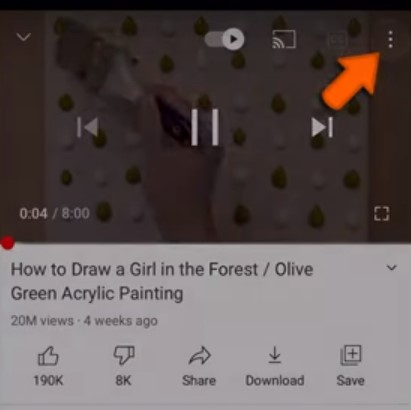
3. If your app is on the old version, click the loop icon appears right after step 2.
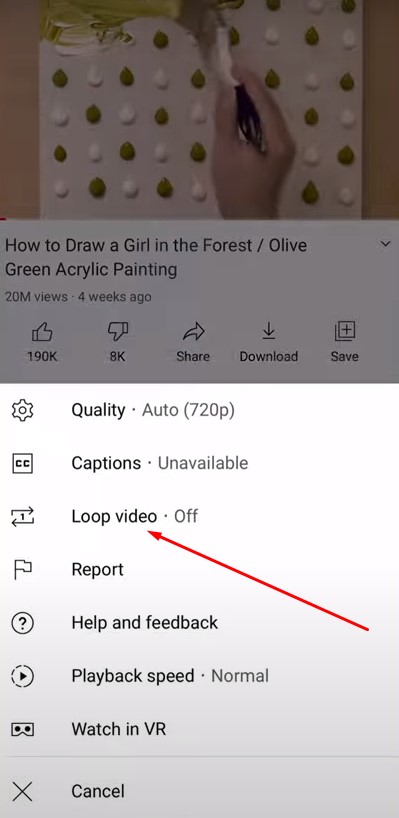
4. You will see a message video loop is on.

Loop Video with New Version
1. Turn on the video you want to loop on the YouTube app on your iPhone or iPad
2. Select the gear icon in the right corner of the screen
3. Click “More options”
4. Slide the “Loop” button
5. A message appears saying “Video looping is on”
And so you can loop YouTube videos on iPhone or iPad in the YouTube App easily with just 4 to 5 easy steps.
How to repeat YouTube videos on iPhone or iPad in the Browser?
1. Open your Browser and go to youtube.com.
2. Search for the video you want to loop.
3. Tap the three dots.

4. When the menu pops up, scroll to the bottom and select Request Desktop Site.

5. Tap and hold on the video until a menu pops up, then tap on the Loop option.

Now the video will be on a loop. Do the same if you are using Safari on iPad.
Play YouTube video on Repeat by creating a Playlist
Making a playlist out of the single YouTube video you want to play repeatedly on your iPhone is one method of looping videos on YouTube.
1. Search for the video you want to repeat by typing keywords in the search bar of the YouTube app.
2. After that, tap the three-dot icon next to the video and select Add to Playlist from the slide-up menu that appears.

The Add to Playlist button can be found in the menu at the top of the YouTube video. You can also do this by tapping the video while it is playing (See the image below)

Note: If you are not already logged in to your Google Account, you might be asked to do so.
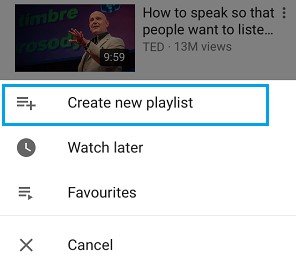
3. After that, select Create new playlist (See image below).
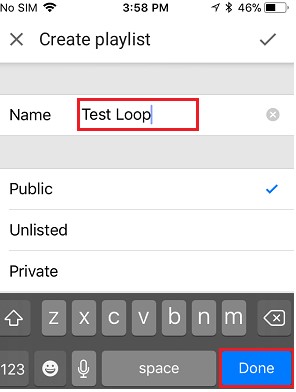
4. On the following screen, select whether you want to make the new playlist public or private, and then click Done to save your Playlist (See image below).
5. Return to YouTube’s main page after making the playlist, and then tap on the Library symbol in the lower-right corner of the screen.

6. Tap the newly generated playlist on the following screen, after which your playlist will begin playing.

7. After your Playlist begins playing, click the Loop button by first tapping the down arrow (1) next to the name of your playlist (2).
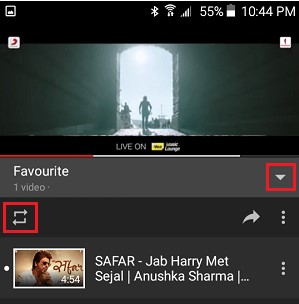
Your chosen YouTube video will now play repeatedly on your iPhone in a loop until you choose to pause it or uninstall the YouTube app.
How to Make a Loop Video with the YouTube Repeat Site
TubeLoop.io is the best YouTube repeat site to loop YouTube videos on iPhone and iPad. With this third-party tool, you can play any YouTube URL on repeat without having to press the play button again and again. It’s a perfect choice for those who want to listen to music, watch music videos, follow tutorials on repeat, or even loop YouTube videos on TV for background music or presentations.
The best part is, TubeLoop is completely free. Simply visit TubeLoop.io on your iPhone or iPad, paste the YouTube URL you want to loop, and hit Play. The video will automatically repeat until you press the Stop button.
On top of that, TubeLoop allows you to adjust playback speed — slow it down to catch every detail or speed it up to save time. Thanks to this flexibility, TubeLoop has become a must-have tool for anyone who loves watching YouTube videos.
Another special feature that makes this tool popular among users is its ability to block ads. Instead of subscribing to YouTube Premium, you can fully enjoy a smooth music experience without any interruptions.
Common Problems When Looping YouTube Videos on Your Device
Looping a YouTube video on an iPhone or iPad sounds simple, but in reality, many users face recurring issues that make the experience less smooth. Below are the most common problems and practical solutions you should know:
Loop button is missing in the app
- Sometimes the loop option doesn’t appear in the YouTube app. This usually happens due to interface changes across different app versions.
- Solution: Update to the latest YouTube version. On older interfaces, the loop button is found in the three-dot menu, while on the 2025 update, it’s under Settings → More Options → Loop.
Playback Stops When Screen Locks
- On iOS, YouTube videos often pause once the iPhone screen turns off.
- Solution: Since this is a system limitation, the workaround is to use browser-based tools like TubeLoop.io, which allow continuous playback even without the YouTube app. You can also adjust your iPhone’s Auto-Lock settings by going to Settings → Display & Brightness → Auto-Lock and temporarily switching it to Never, so the screen doesn’t turn off during playback. Just remember to change it back later to save battery.
Difficulty Looping YouTube Shorts
- Shorts don’t always support looping inside the app.
- Solution: Add the Short to a playlist and enable “Loop Playlist,” or use a third-party repeat site to keep it running endlessly.
Ads Interrupt the Video Loop
- Ads will still interrupt YouTube video looping if you don’t subscribe to YouTube Premium
- Solution: Use ad-free looping tools such as TubeLoop.io to enjoy uninterrupted playback.
Battery Drains Faster
- Continuous video looping on iPhone consumes more power, especially with high brightness, Wi-Fi, or long play sessions.
- Solution: Lower screen brightness, reduce volume, or keep your iPhone connected to a charger when looping for extended periods.
Frequently Asked Questions (FAQ)
Can you loop YouTube videos on an iPhone?
Yes. You can loop videos directly in the YouTube app using the loop icon or by creating a playlist. You can also use TubeLoop.io to repeat videos for free without ads.
How do I loop a YouTube video on my phone?
Open the video, tap the three-dot menu, and select Loop video.
Does TubeLoop require registration, or is there a fee to use it?
No, TubeLoop does not require registration, and it’s completely free to use. You can repeat any YouTube video instantly by pasting the video URL into the site without creating an account or paying any subscription fee.
Related: How to Loop a YouTube Video on Computer Mac and Mobile App?
This article has just guided you on how to loop a YouTube video on iPhone or iPad. There are many easy ways to do it, choose the one that you feel is suitable for your purpose. Thank you for reading.

I am Eric Mason, the founder of TubeLoop.io and I have extensive experience with digital marketing and media. I have employed my expertise to launch a multitude of successful online businesses, ranging across a variety of industries. I also enjoy tackling startups, taking calculated risks and taking advantage of opportunities – I believe these attributes act as catalysts for success within any industry. I look forward to continuing my journey toward success with TubeLoop.io makes it possible for people to watch youtube videos over and over again, it is something I am passionate about and I’m excited to see what the future holds.
Related Posts
![Do you get a play button for 1000 subscribers on Youtube? [Full Guide 2025]](https://tubeloop.io/wp-content/uploads/2024/02/do-you-get-a-play-button-for-1000-subscribers-on-youtube-1024x538.jpg)
Do you get a play button for 1000 subscribers on Youtube? [Full Guide 2025]

Who is Matt The Collector on YouTube? Dive Into His World!
